Bluetooth headphones are meant to make life easier, but nothing feels more frustrating than when your Victus laptop Beats Solo 3 Bluetooth not working issue ruins your listening experience. Many users report problems like the Beats Solo 3 not appearing in the Bluetooth list, connecting without audio, or disconnecting randomly. Luckily, this guide will walk you through the causes, solutions, and preventive measures in a clear and practical way.
Understanding the Devices
Before fixing the issue, it’s important to understand the two devices involved.
- HP Victus Laptop: A powerful gaming and productivity laptop that often ships with MediaTek or Realtek Bluetooth adapters. These adapters are efficient but sometimes face driver compatibility issues, especially on Windows 11.
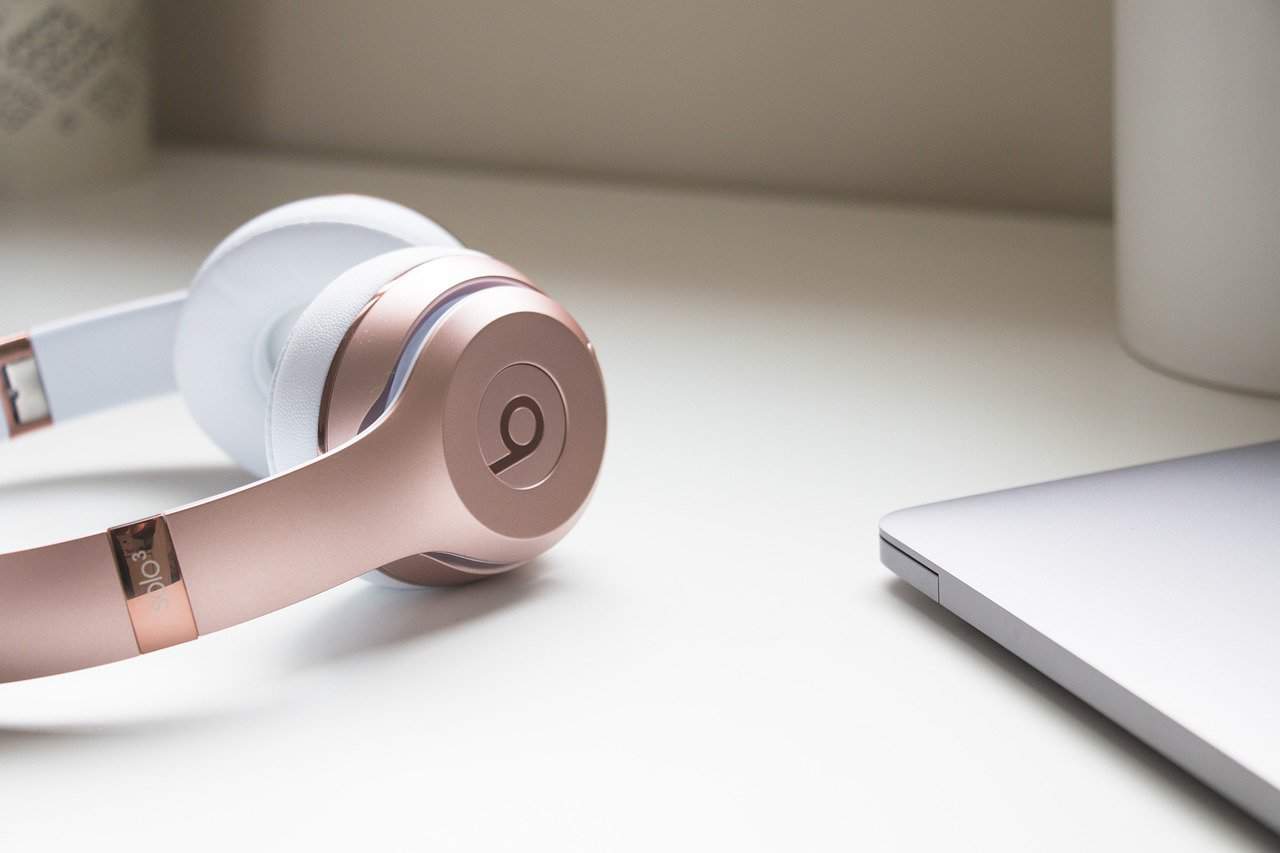
- Beats Solo 3 Headphones: These are wireless headphones powered by Apple’s W1 chip, offering up to 40 hours of battery life. They pair smoothly with iPhones, but can occasionally run into connectivity problems with Windows laptops.
When the Victus laptop Beats Solo 3 Bluetooth not working problem happens, it usually comes down to Windows drivers, Bluetooth services, or improper pairing.
Symptoms of the Problem
The issue can show up in different ways. Some common signs include:
- The Beats Solo 3 do not appear in the Victus laptop’s Bluetooth list.
- The headphones pair, but no audio comes out.
- Bluetooth disappears entirely from Windows settings after locking or sleeping the laptop.
- The connection keeps dropping or lagging while listening.
These symptoms help identify whether the problem lies with the laptop’s Bluetooth adapter, the headphones, or a software conflict.
Step-by-Step Troubleshooting Guide
1. Basic Checks
Start with the simple things. Make sure your Beats Solo 3 are charged and in pairing mode. To do this, press and hold the power button until the LED flashes. On your Victus laptop, go to Settings → Bluetooth & devices → Add Device → Bluetooth and see if the headphones appear.
2. Update Windows and Drivers
The most common reason for the Victus laptop Beats Solo 3 Bluetooth not working is outdated drivers. Open Windows Update and install all pending updates. Then, go to Device Manager → Bluetooth, right-click your Bluetooth adapter, and select Update Driver → Search automatically. For more reliability, download the latest drivers from the HP Support page.
3. Run Bluetooth Troubleshooter
Windows includes a built-in troubleshooter. Navigate to:
Settings → System → Troubleshoot → Other troubleshooters → Bluetooth.
This tool often detects missing services or temporary glitches and repairs them automatically.
4. Disable Fast Startup
Fast Startup can sometimes prevent Bluetooth services from reloading correctly after shutdown. To fix this:
- Go to Control Panel → Power Options → Choose what the power buttons do.
- Click Change settings that are currently unavailable.
- Uncheck Turn on fast startup (recommended).
Restart your laptop and try pairing again.
5. Reinstall the Bluetooth Adapter
If Bluetooth keeps disappearing, you may need to reinstall it. In Device Manager, right-click your Bluetooth adapter, select Uninstall device, and then restart your laptop. Windows will automatically reinstall the adapter.
6. Check Bluetooth Services
Sometimes, the necessary services are disabled. Press Windows + R, type services.msc, and check the following are set to Automatic and running:
- Bluetooth Support Service
- Bluetooth Audio Gateway Service
- Bluetooth User Support Service
Restart these services if needed.
7. Adjust Power Management
By default, Windows may turn off your Bluetooth adapter to save power. To prevent this:
- Go to Device Manager → Bluetooth Adapter → Properties → Power Management.
- Uncheck “Allow the computer to turn off this device to save power.”
This ensures the adapter remains active even when the laptop is idle.
8. Reset Beats Solo 3
If nothing works, reset the headphones. While connected to a charger, press and hold both the Power button and Volume Down button until the fuel gauge flashes. After this reset, put them back into pairing mode and try again.
Real-World User Experiences
Many HP Victus owners report that their Beats Solo 3 work fine with phones but not with the laptop. In several cases, the issue was traced back to the MediaTek MT7921 Bluetooth adapter. Installing an alternative driver from HP or Lenovo’s support site often resolved the issue.
Others found that disabling Fast Startup or changing the Bluetooth power settings completely fixed the “Victus laptop Beats Solo 3 Bluetooth not working” problem.
Testing and Validation
To confirm where the issue lies:
- Try connecting the Beats Solo 3 to another device, like a smartphone. If it works fine, the problem is with the laptop.
- Try another Bluetooth headset or speaker with your Victus laptop. If those also fail, it confirms a laptop Bluetooth issue.
This method helps you avoid wasting time troubleshooting the wrong device.
Quick Fix Comparison Table
| Problem | Likely Cause | Fix |
|---|---|---|
| Beats not showing in list | Not in pairing mode / Windows driver issue | Hold power until LED flashes, update Bluetooth drivers |
| Connected but no audio | Wrong output device set | Right-click sound icon → Select Beats Solo 3 as default |
| Bluetooth disappears after sleep | Fast startup / power management | Disable fast startup, uncheck “Allow device to save power” |
| Random disconnections | Interference or low battery | Keep devices close, recharge Beats, reset headphones |
Preventive Tips
To avoid facing the Victus laptop Beats Solo 3 Bluetooth not working issue again:
- Keep Windows and Bluetooth drivers updated.
- Avoid pairing Beats with too many devices at once.
- Disable Fast Startup permanently.
- Restart your laptop after major updates.
These simple steps can keep your connection stable for the long run.
Conclusion
When you run into the Victus laptop Beats Solo 3 Bluetooth not working problem, it usually comes down to drivers, power management, or incorrect pairing. By carefully going through the steps above—updating drivers, adjusting settings, and resetting the headphones—you can almost always get the two devices working together smoothly.
If nothing works, the last resort is to use an external USB Bluetooth dongle or contact HP Support for a replacement adapter. With the right approach, your Beats Solo 3 should deliver the wireless freedom and sound quality they’re known for—right on your HP Victus laptop.
FAQs
1. Why won’t my Victus laptop detect my Beats Solo 3?
Usually, it’s because the headphones aren’t in pairing mode or the laptop’s Bluetooth driver is outdated. Hold the Beats power button until the LED flashes and update the laptop drivers.
2. My Beats Solo 3 connect but no sound plays—what should I do?
Go to sound settings, and set Beats Solo 3 as the default output device. Sometimes Windows defaults to the laptop speakers even when the headphones are connected.
3. Why does Bluetooth disappear on my Victus laptop after sleep mode?
This often happens due to Fast Startup or power management turning off the adapter. Disabling these features usually solves the issue.
4. How do I reset Beats Solo 3?
Plug in the headphones, then press and hold the Power and Volume Down buttons until the fuel gauge flashes. Release and wait for the reset to complete.
5. Should I use a Bluetooth dongle with my Victus laptop?
If the built-in adapter is unreliable, a USB Bluetooth dongle can be a quick and affordable fix. It bypasses driver issues and often provides better stability.
About the Author