Introduction
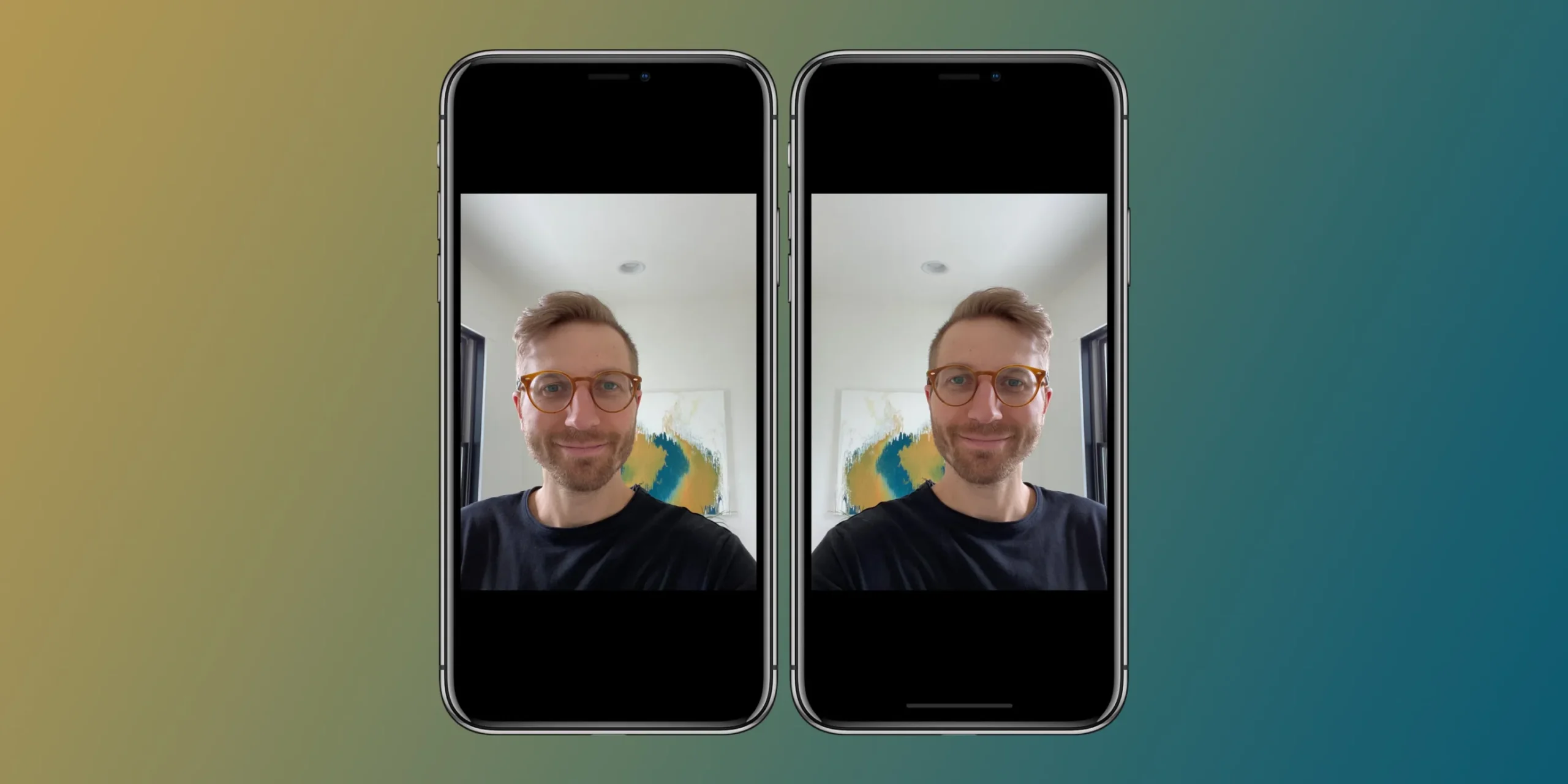
Many iPhone users search for how to invert camera on iPhone ? because their selfies or photos do not look the same after being saved. You might notice that the preview looks perfect while taking a selfie, but the final image appears flipped or reversed. This can be confusing, especially when text, logos, or facial features look different than expected.
In this guide, you will learn everything about inverting, flipping, or mirroring the iPhone camera using simple language. Whether you want your selfies to look exactly like the preview or need to fix an already captured photo, this article walks you through every method clearly and step by step.
Understanding iPhone Camera Basics
Before learning how to invert camera on iPhone ?, it is important to understand how the camera works. The iPhone has two main cameras: the front camera (used for selfies and video calls) and the rear camera (used for regular photos and videos).
The front camera behaves like a mirror when you are taking a selfie. This means you see yourself as you would in a mirror, which feels natural. However, the iPhone often saves the photo in a non-mirrored version. This is why your face, hair part, or background text may appear reversed after the photo is saved.
In simple terms, “inverting” or “mirroring” the camera usually means one of two things: either saving the selfie exactly as you see it on the screen, or flipping an already taken photo so it looks mirrored.
How to Invert Camera on iPhone Using Built-In Settings
The easiest and most reliable way to invert the camera on iPhone is by using the built-in camera setting called Mirror Front Camera. This option is provided by Apple to give users more control over how selfies are saved.
To enable this feature, open the Settings app on your iPhone and scroll down until you find the Camera option. Tap on Camera and look for the setting labeled “Mirror Front Camera.” Once you turn this toggle on, your iPhone will save selfies exactly the way they appear in the camera preview.
This method is ideal if you frequently take selfies and want consistent results without editing each photo afterward. When the setting is enabled, the front camera image is inverted automatically during saving, which solves the problem for most users searching for how to invert camera on iPhone.
Which iPhones Support Camera Inversion Settings
Not all older iPhone models display the Mirror Front Camera option in the same way. This setting is commonly available on newer iPhones running recent iOS versions. If you do not see the option, it usually means your device or software version does not support it yet.
In such cases, you can still invert photos manually after taking them. Even without the built-in toggle, there are reliable ways to flip images using the Photos app, which we will explain next.
How to Invert or Flip Photos After Taking Them
If your selfie is already taken and looks reversed, you can easily flip it using the Photos app. This method works on all modern iPhones and does not require any extra apps.
Open the Photos app and select the image you want to invert. Tap the Edit button in the top corner and then choose the Crop and Rotate tool. Inside this section, you will see a flip icon that allows you to mirror the photo horizontally. Tap it once, review the result, and then save the image.
This approach is especially helpful when you only need to fix a few photos. It also works for images taken with the rear camera, making it a flexible solution for anyone learning how to invert camera on iPhone in different situations.
Using Third-Party Camera and Editing Apps
Some users want even more control over camera behavior. In that case, third-party camera or photo-editing apps can help. Many camera apps allow you to save mirrored selfies by default or flip photos with advanced editing tools.
Photo-editing apps are also useful if you want to adjust brightness, crop images, or correct orientation while flipping the photo. While these apps are optional, they can be helpful for content creators or social media users who want consistent visual results.
Common Issues When Inverting Camera on iPhone
Sometimes users enable the Mirror Front Camera setting but still feel confused. This usually happens because the camera preview is always mirrored, regardless of the setting. The toggle only affects the final saved image, not what you see on the screen while taking the photo.
Another common issue is text appearing backward in selfies. If you capture images with signs, documents, or logos, you may need to flip the photo manually after taking it. This ensures text is readable and looks correct.
Helpful Tips for Better Selfies After Inverting
When learning how to invert camera on iPhone, small adjustments can improve results. Try using the grid feature to align your face properly. Good lighting also reduces the need for heavy editing later. If you frequently post selfies online, check whether the platform automatically mirrors images before uploading.
Being consistent with camera settings helps avoid confusion and saves time when editing photos later.
Quick Comparison Table: Camera Inversion Methods
| Method | Best For | Ease of Use |
|---|---|---|
| Mirror Front Camera setting | Automatic selfie mirroring | Very easy |
| Photos app flip tool | Fixing existing photos | Easy |
| Third-party apps | Advanced control | Moderate |
Frequently Asked Questions
Why does my iPhone selfie look flipped after saving?
This happens because the front camera preview is mirrored, but the saved image may not be unless you enable the mirror setting.
Does inverting the camera affect video recordings?
The Mirror Front Camera setting mainly affects photos. Videos may still require manual editing to flip them.
Can I invert the rear camera on iPhone?
The rear camera does not have a mirror setting, but you can flip photos afterward using the Photos app.
Will flipping photos reduce image quality?
No, flipping or mirroring does not reduce photo quality when done using the built-in tools.
Is camera inversion available on all iPhones?
Most newer iPhones support it, but older models may require manual photo flipping.
Conclusion
Understanding how to invert camera on iPhone ? makes taking selfies and photos much more enjoyable. Whether you enable the Mirror Front Camera setting or flip images after capturing them, iOS offers simple tools to get the result you want. By following the steps in this guide, you can ensure your photos look natural, accurate, and exactly how you expect them to appear.
Once you set things up correctly, camera inversion becomes effortless, saving time and frustration while improving your overall photo experience.
About the Author